Vector vs. Raster: When to Use Each for Printing
Choose vector or raster artwork by production process, and learn why SVG, PDF and EPS do not automatically mean a file is press-ready.
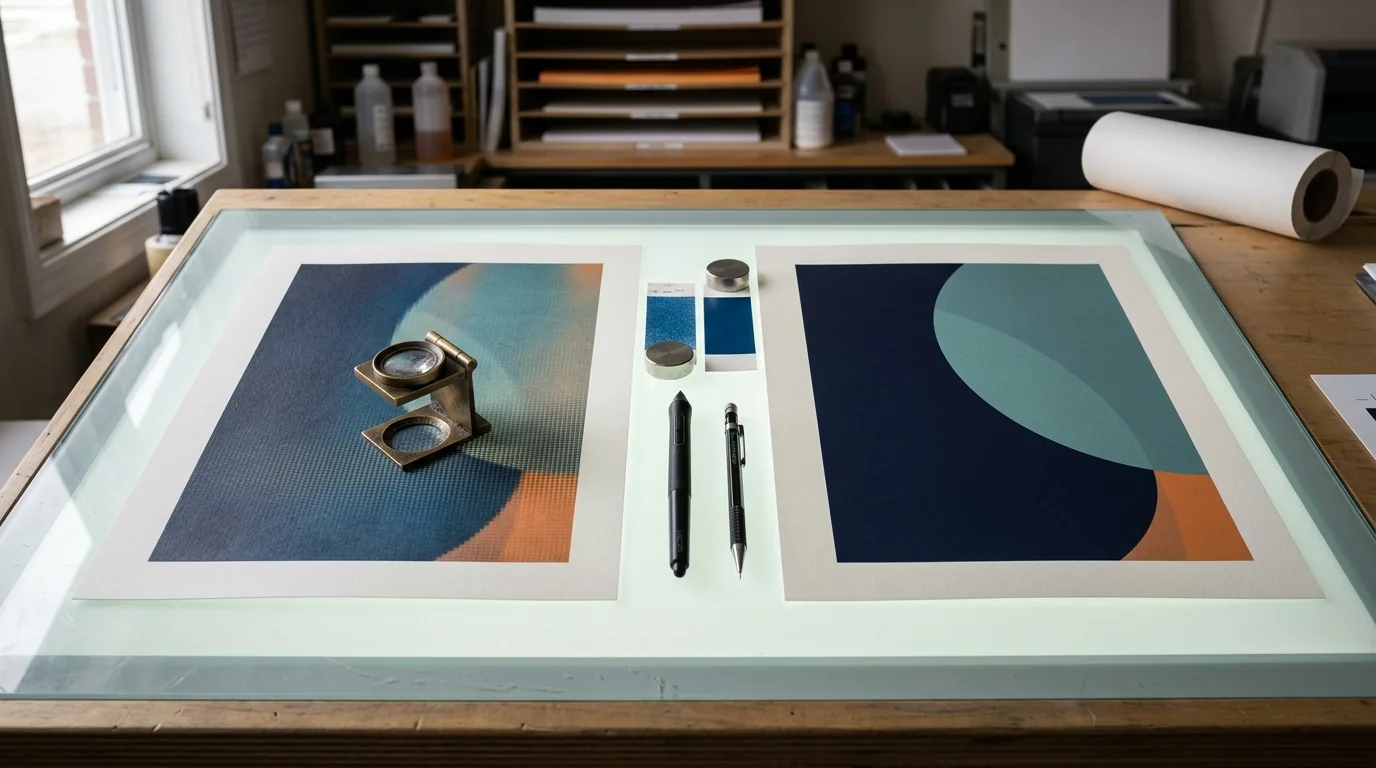
Vector and raster describe how artwork is stored. Neither label guarantees a production-ready file. The right choice depends on the image and what the equipment needs to do with it.
Vector: geometry that can scale
Vector artwork stores points, curves, shapes and attributes. It is well suited to logos, lettering, flat-color illustration, vinyl cut paths and other work where clean geometry matters. Because the paths are resolution-independent, they can be scaled without creating pixel stair-stepping.
That does not mean every SVG is clean. Automatic tracing can create thousands of nodes, overlapping shapes, open contours and tiny artifacts. Screen-printing work still needs color separation; cut work still needs closed, sensible paths; embroidery still needs digitizing.
PDF and EPS deserve special caution. They are containers, not proof that the contents are vector. Either format can hold vector objects, embedded raster images or both.
Raster: pixels with a fixed relationship to size
Raster artwork stores a grid of pixels and is the natural format for photographs, texture, continuous tone and many DTF, DTG, sublimation and simulated-process jobs. It can print beautifully when it contains enough source pixels for the intended size and viewing condition.
PPI describes image pixels per inch at placement size. DPI describes output device dots and is often used loosely when people mean PPI. For preflight, check pixel dimensions and final size rather than trusting a resolution label.
Do not assume every raster file must be 300 PPI. A close-viewed garment graphic may need more source detail than a large banner viewed across a room. Our wide-format resolution guide shows why viewing distance belongs in the calculation.
Common production choices
- Spot-color screen printing: clean vector objects are convenient, but the file still needs a real separation and production settings.
- Simulated-process screen printing: raster channels and halftones are common.
- DTF and DTG: high-quality raster with intentional transparency is a practical handoff for many shops.
- Embroidery: vector can be a useful reference, but the deliverable is a digitized stitch file.
- Vinyl cutting: vector paths are required for the cutter to follow.
- Wide format: vector text and logos can coexist with appropriately resolved raster photos.
What PrintCraft AI does
The PrintCraft AI generator currently creates raster source artwork. It does not choose a guaranteed press-ready format automatically. When suitable, the separate Vectorizer can trace that image to SVG. The SVG should then be inspected and prepared for its destination.
For screen printing, continue to separation—see why an SVG is not a separation. For embroidery, send approved art to a digitizer. For raster printing, set the final physical size and check effective PPI, transparency and color requirements with the provider.
Frequently Asked Questions
Sources and further reading
We use primary documentation and current trade guidance, then apply editorial review for print-production context.
Related Resources
Ready to Develop the Next Artwork Direction?
Build a print-aware creative brief, generate a concept, and keep the project history together for production review.